
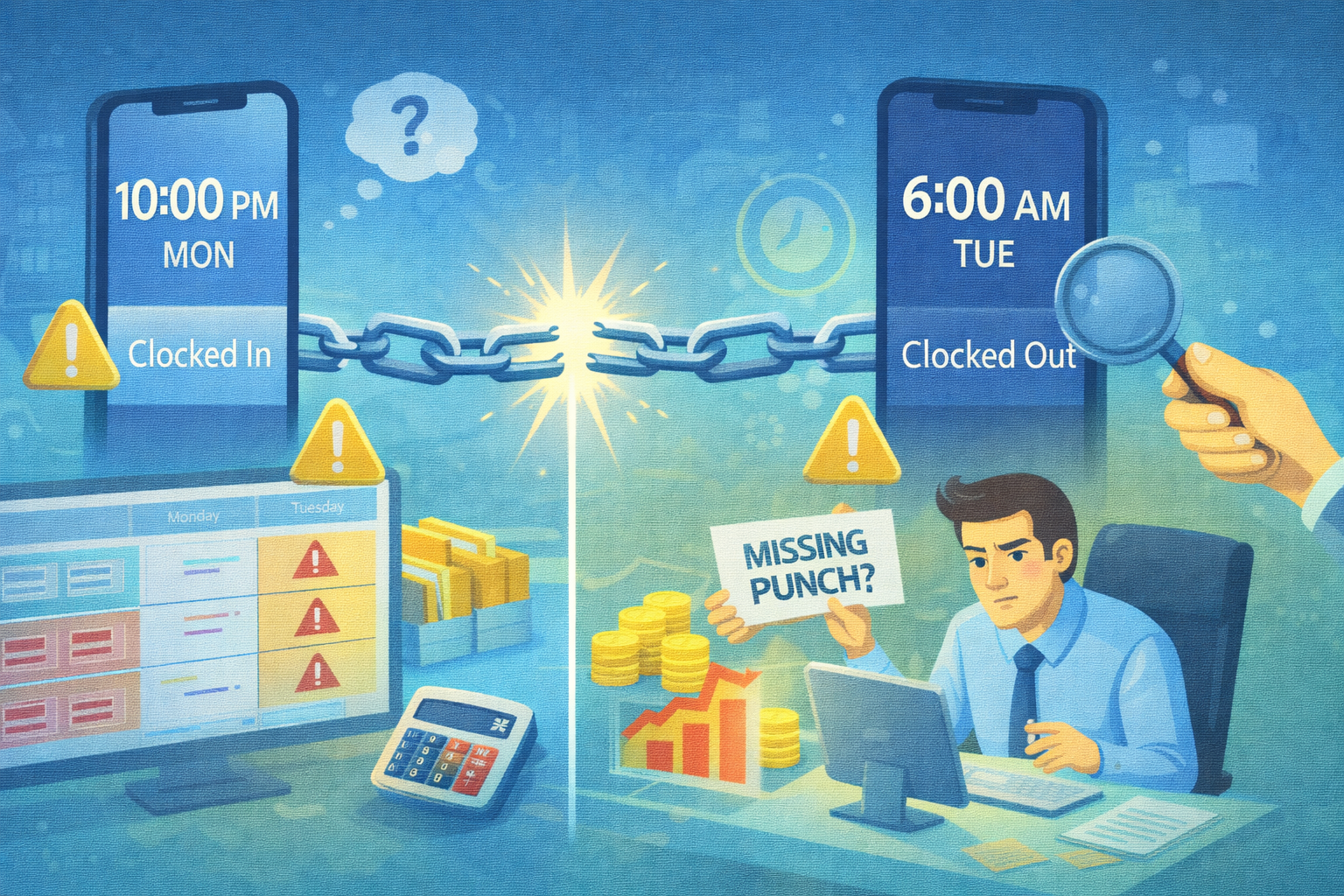
The primary reason overnight shifts break basic tools is that the software is looking for a "Start" and "End" within the same 24-hour window. When an employee clocks in at 10:00 PM on Monday and out at 6:00 AM on Tuesday, a basic system sees a Monday with no clock-out and a Tuesday with no clock-in.
To fix this, you need a system that is shift-aware, not just date-aware.
1. The Common Problems of "Date-First" Logic
If your system isn't configured for overnight work, you'll run into these three issues every single morning:
-
The "Orphaned" Punch: Monday’s report shows a missing clock-out, and Tuesday’s report shows a missing clock-in. This triggers automated warnings that confuse staff.
-
Incorrect Payroll Totals: If the system splits the shift at midnight, your daily labor cost reporting is skewed, making it look like you had massive labor costs on Monday night and Tuesday morning, rather than one consistent shift.
-
The Manager's "Ghost Hunt": Managers waste time "chasing" staff for missing punches that aren't actually missing—the data is just sitting on the wrong page.
2. What to Configure for Success
To bridge the midnight gap, ensure your settings include these three critical configurations:
-
Overnight Shift Handling: Enable a rule that allows a clock-out to be paired with a clock-in from the previous day if it occurs within a specific window (e.g., 12 hours).
-
Maximum Shift Length: Set a threshold (usually 12–16 hours). This tells the system, "If someone hasn't clocked out within 14 hours, then flag it as an error." This prevents the system from accidentally pairing a Monday morning clock-in with a Tuesday morning clock-out.
-
Auto-Pairing Rules: Use logic that prioritizes the "IN" punch. The system should look for the very next "OUT" punch, regardless of whether the clock has passed 12:00 AM.
3. Exception Reporting (Noise Reduction)
The goal of a digital system is to show you only what is broken.
-
Filter out the "False Positives": When your midnight rules are set correctly, overnight shifts will appear as "Normal."
-
Focus on the Real Errors: Your "Exception Report" should only show people who actually forgot to punch—not the people who simply worked through the night.
WorkClocking Tip: Reflect Your Reality
Don't force your business to fit the software's calendar. Configure your Shift Reset Time (the time the system considers a "new day") to a period where no one is working—for example, 4:00 AM instead of midnight—to ensure your daily totals align with your operational cycles.